I have been using KDE Connect for more than a year now. I decided to write this updated post because this little open-source app has genuinely transformed how I work as a developer — and I want every Linux/Android user to feel the same freedom I do.
Once upon a time, life was boring. Phone on the charger across the room. Laptop tethered to a desk. Constantly reaching, switching, scanning QR codes, or dealing with clunky cables. Then I met KDE Connect. Her description still makes me smile:
KDE Connect is a cross-platform application that allows for seamless data transfer and communication between various devices like phones and computers.
I use Linux (Ubuntu/KDE/GNOME) and Android every single day. I have zero experience with “the other girl” (you know who I mean). So this full KDE Connect review is written for Android/Ubuntu/KDE/GNOME ecosystem people — the freedom-loving developers, tinkerers, and adventurers like us.
This isn’t just another quick list. I’m diving deep: how KDE Connect actually works, the complete KDE Connect features list, real-world Android setup, honest pros/cons, and a head-to-head KDE Connect vs Phone Link (Microsoft’s version). By the end you’ll know exactly why this app is my daily driver and why it deserves page 1.
How Does KDE Connect Work? (The Simple Tech Behind the Magic)
Here’s the part most reviews skip: KDE Connect works over your existing Wi-Fi network (no cloud, no Microsoft account, no Bluetooth drama). It uses a clever open protocol (UDP discovery on port 1716 + TCP for the actual connection) that lets devices find each other automatically on the same local network. Everything is encrypted end-to-end for security.
Pair once, and your phone and computer start talking like old friends. It works on Linux, Windows, and even has an iOS app now (though Android + Linux is where it shines brightest). No internet required once paired — pure local magic.
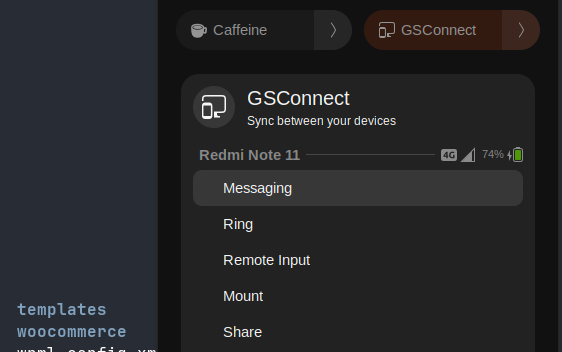
That’s why it feels so seamless compared to cloud-dependent tools. As long as you’re on the same Wi-Fi (or same Tailscale/ZeroTier network for advanced users), it just works. And yes — it works beautifully on GNOME via GSConnect too.
KDE Connect Features List: Everything This App Can Do in 2025
People search for a proper KDE Connect features list because most articles only scratch the surface. Here’s the full, no-BS rundown based on my daily use across two Android phones and two Linux machines:
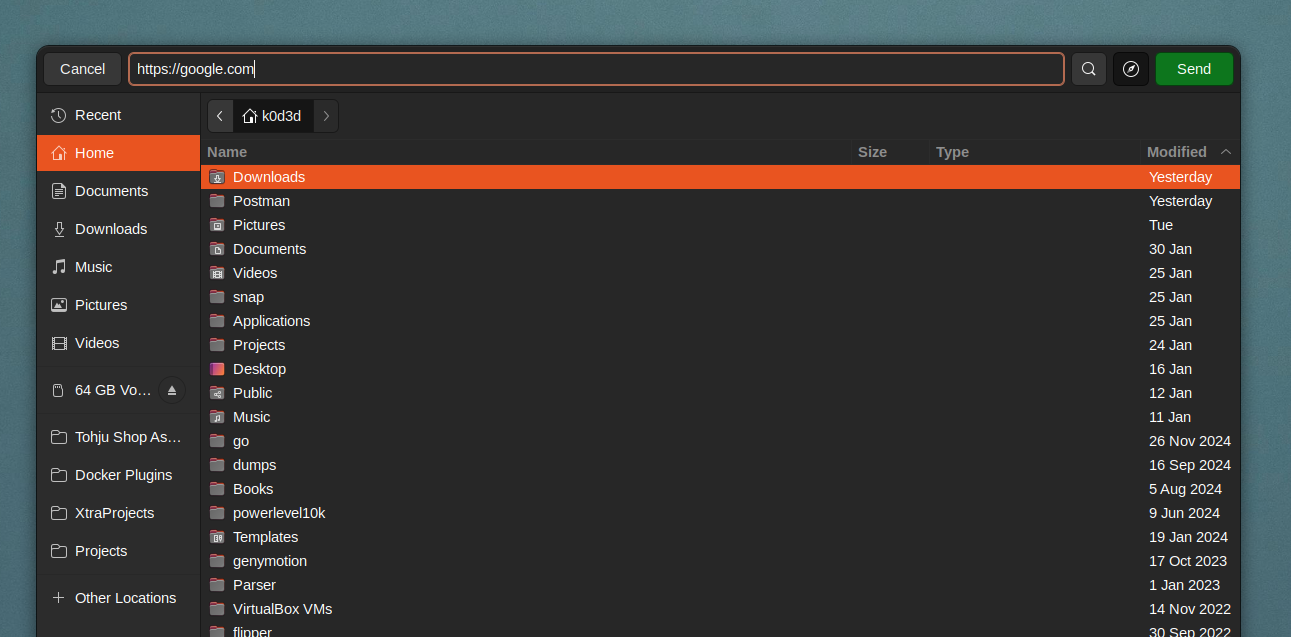
- Share Files and Links Bidirectionally Pick a file (or folder) on your phone, tap a connected device, and it flies over. Reverse direction works too. I can mount my phone’s storage wirelessly in my Linux file manager and browse it like a local drive. No more “where’s that screenshot I took?”
- Send URLs Instantly Browsing on your phone and want it on the big screen? Share the link → it opens on your laptop instantly. I use this constantly for YouTube videos on my 40-inch TV setup. Reverse works too — no more QR code nonsense.
- Control Music & Media Playback from Any Device This still blows my mind. Spotify, YouTube, movies — pause, skip, change volume from your phone while the media plays on the computer (or vice versa). Phone gets a call? Playback auto-pauses and resumes. Every device becomes a universal remote.
- Use Your Phone as a Mouse, Keyboard, or Presentation Remote Gyro mouse, touchpad, full keyboard — perfect when my laptop is hooked to the TV with the lid closed. Slideshow control is a bonus for actual presentations.
- Run Custom Commands on Your Linux Machine Reboot, launch apps, turn off the screen, run scripts — all from your phone. I control my older low-RAM laptops without ever touching them.
- Shared Clipboard (Bidirectional) Copy on one device, paste on the other. Phone → PC needs a quick tap sometimes, but PC → phone is instant. (It works ~80-90% of the time now after updates — huge improvement.)
- Full Notification Sync + Reply See every phone notification on your desktop. Reply to SMS, WhatsApp, emails, archive Gmail — all without touching your phone.
- Send & Receive SMS from Your Laptop Game-changer for OTPs and quick replies. I stay in flow state.
- Ring Your Phone / Check Battery Can’t find your phone? Make it ring loudly. Battery level shows right in the desktop indicator.
- Bonus Power-User Stuff Presentation remote, find-my-phone ping, and even some experimental plugins from the community.
This isn’t a half-baked tool — it’s genuinely one of the most useful open-source projects I’ve ever installed.
KDE Connect Android: Setup, App Experience, and What to Expect
The KDE Connect Android app (available on Google Play or F-Droid for pure open-source) is clean and lightweight. Install it, grant the usual permissions (notifications, storage, etc.), and it starts scanning for devices.
Pairing is stupidly easy: both devices on same Wi-Fi → they see each other → tap to pair → done. The Android side shows a clean list of connected devices with per-device plugin toggles so you can disable anything you don’t want (great for battery).
Pro tip from my experience: On Android 14/15 the app plays nice in the background now. Battery impact is minimal compared to older versions.
KDE Connect vs Phone Link (Microsoft’s Link to Windows): The Honest 2025 Comparison
A lot of people searching “KDE Connect vs Phone Link” are Windows users wondering if they should switch ecosystems or Linux users curious why everyone raves about KDE Connect.
Here’s the no-fluff truth from someone who lives in Linux land:
- KDE Connect wins on features — more advanced remote control, better file sharing, true bidirectional clipboard, run commands, presentation mode, and open-source customizability.
- KDE Connect wins on privacy & freedom — no Microsoft account required, no cloud syncing, works on Linux, Windows, and even macOS. Pure local network.
- Phone Link wins on Windows polish (if you’re 100% Windows + specific Android phones) — slightly slicker SMS integration and screen mirroring on some devices.
- But Phone Link loses everywhere else — it’s Windows-only, closed-source, and feels crippled compared to KDE Connect’s full feature set.
For Linux users? Phone Link isn’t even an option. KDE Connect is the clear winner — and honestly, many Windows users I’ve talked to say they prefer it too once they try it.
My Real-World Experience: The Wins, the Tiny Hiccups, and Why I Still Love It
After 18+ months of daily use on two phones and two Linux machines, here’s the honest truth:
The big wins I already loved are still there and even better: music control, URL sharing, file transfers, notifications, and SMS replies save me hours every week. I can leave my phone across the room and still feel in total control. That freedom is priceless.
Occasional hiccups? Yeah, they exist (just like the Reddit and Hacker News threads mention). Device discovery can be flaky on enterprise Wi-Fi or after VPN switches — but the fix is easy: refresh, restart the daemon, or add by IP (takes 10 seconds). Clipboard isn’t 100% instant every single time, but 9/10 it is. File transfers are fast on good Wi-Fi but can pause on weak signals.
Compared to the old days of cables, QR codes, and separate apps? This is night-and-day better. The community is active, updates keep coming, and the open protocol means it just keeps improving.
(Shoutout to the UBports folks dreaming of full Ubuntu Touch integration — the future is bright.)
Quick Setup Guide: Get KDE Connect Running in Under 5 Minutes
- Linux side:
sudo apt install kdeconnect(or GSConnect on GNOME). - Android side: Install from Play Store or F-Droid.
- Same Wi-Fi → open both apps → pair.
- Grant permissions on phone.
- Done.
Pro tips: Allow KDE Connect through any firewall. For remote networks, use Tailscale. Restart the daemon (kdeconnect-cli -r) if devices vanish.
Final Verdict: Install KDE Connect Today
KDE Connect has turned my scattered devices into one seamless workspace. No more grabbing my phone every two minutes. No more friction. Just pure flow.
If you’re on Linux (or even Windows) and use Android, do yourself a favor — install it right now. You’ll wonder how you ever lived without it.
Freedom feels this good.